Interplay - Room Service
Interplay - Room Service
One of my favourite deep house tracks to date.
Interplay - Room Service
One of my favourite deep house tracks to date.
Danny Byrd - Like A Byrd feat. Saint Louis
Great sing-a-long track by the Byrd.
Phace & Misanthrop - Desert Orgy
Awesome track that was in Friction’s FabricLive mix.
So it appears there is some confusion in the Apple community about whether Caching Server 2 actually caches iOS 7 app downloads. Numerous posts have been popping up saying “No, you’re wrong, it doesn’t cache iOS 7 downloads!”. I’m here to say, no, you’re wrong. It does. After some extensive testing, I will now elaborate.
First off, I’m going to install a program called Charles that acts as a proxy server. Install Charles, set it up then have your iOS device route requests through Charles so we can see exactly what’s happening. Now, before I continue, I must let you know that the app I am about to download was one that I had previously downloaded a week ago, but then deleted (my partner and I were using it for her university project) so it has already been cached on my Mavericks Caching Server. This article isn’t about the initial caching process, more about proof that it does in fact serve cached iOS App Store downloads. I have a standard OS X Mavericks Server running on a 2010 Mac mini with healthy DNS and 1 subnet, and my iPhone is running iOS 7.0.3.
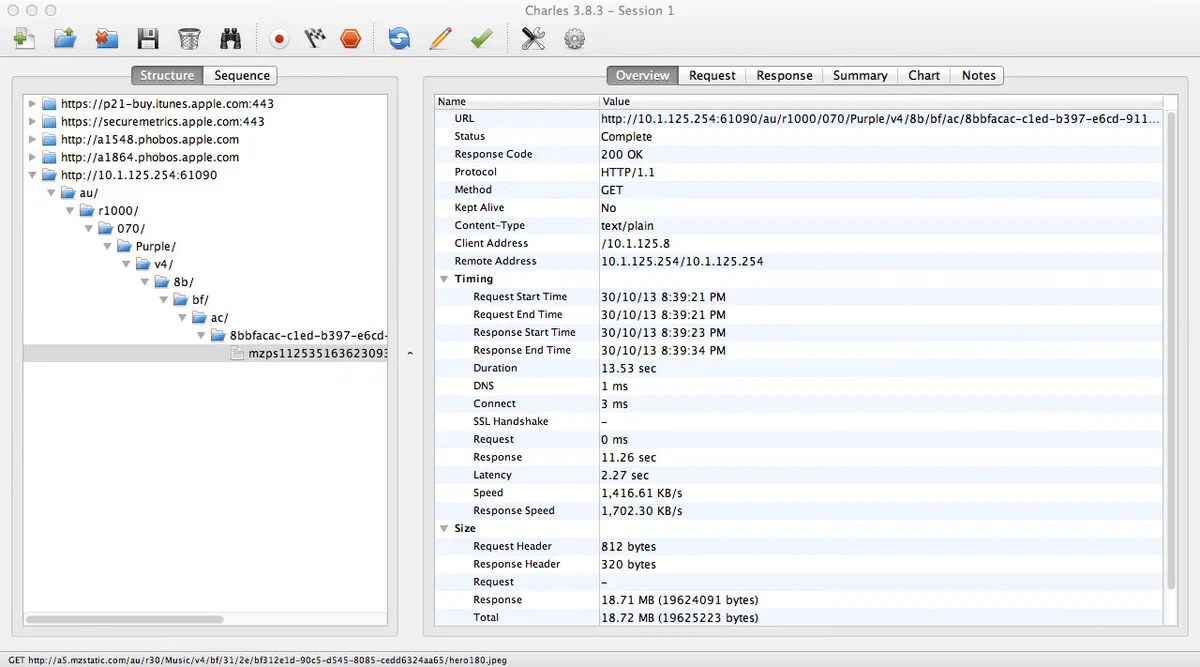
Right, so I load up the Purchases tab on my iPhone and tap on the app to download it. Now this app in question is Metronome, a small app that is 18.7 MB in size. Make sure you remember the size because it’s important. Just before I downloaded the app I opened up Charles and started a recording session. The app downloads pretty quickly and I check out what Charles has captured.

So far, it looks good. As you can sort of see by the image, my caching server at 10.1.125.254 on port 61090 responded to an App Store download request. How is that possible when Caching Server 2 doesn’t support iOS 7 app downloads? Oh wait, it does. My bad. Let’s investigate further:

Basically, that image shows that the response from my caching server was 18.72 MB in size. Wow! Didn’t I say that the app was 18.7 MB in size? Yep, I did. But wait, that’s not the only piece of evidence I’m going to use to prove that I’m right. Next, I’m going straight to the source. Caching Server 2 stores all of the cached metadata in a database called AssetInfo.db. I’m going to copy that to the Desktop using Terminal (the folder it resides in isn’t accessible by standard Finder means).
Okay, I’ve copied the AssetInfo.db from /Library/Server/Caching/Data/ and opened it up in Base, which is a program to work with SQLite 3 databases. After opening AssetInfo.db I loaded up the ZASSET table and export all rows as a CSV. I then opened up the CSV in Excel (Oh Numbers? We all know Numbers has excellent CSV support…). Next, copying the UUID from the URI in Charles, I pasted that into a search field in Excel, and to my surprise, a row was returned! (I lie, it wasn’t a surprise. I expected it to return a result). You could also do this in Terminal, like this:
sqlite3 /Library/Server/Caching/Data/AssetInfo.db 'SELECT * FROM ZASSET WHERE ZURI LIKE "%8bbfacac-c1ed-b397-e6cd-9110eb87001b%"'
Which gets me this beautiful result:
177|1|5|0|19624091||404215540.806059|daa32fb0fc47da467fd693e12262c318|6FCE511E-C2B2-4449-99E2-0B5EC9F919B4|Fri, 07 Dec 2012 03:15:24 GMT|/au/r1000/070/Purple/v4/8b/bf/ac/8bbfacac-c1ed-b397-e6cd-9110eb87001b/mzps1125351636230933757.D2.dpkg.ipa|
Now, one of those fields is the ZURI (aka the URI that Caching Server uses). When examining the URI in Charles, you can see the URI is the same:
http://10.1.125.254:61090/au/r1000/070/Purple/v4/8b/bf/ac/8bbfacac-c1ed-b397-e6cd-9110eb87001b/mzps1125351636230933757.D2.dpkg.ipa?source=a954.phobos.apple.com
Of course you exclude the IP address as it’s the caching server address on my LAN. The URI matches the AssetInfo.db’s ZURI field and guess what? The ZLASTMODIFIEDSTRING is the exact same date that the last update for Metronome was published (7th December 2012). I also found that the ZTOTALBYTES field, when converted to MB in Base-2, equals… 18.7 MB (which in itself is unusual, the rest of caching server calculates bytes in Base-10). Also, doing a Get Info on the binary file reveals the exact same byte count as ZTOTALBYTES.
Further to that, when I navigate to the actual binary (stored at /Library/Server/Caching/Data/<GUID>/0 by default) and enter md5 /path/to/file I get the same hash that is stored in ZCHECKSUM. For example, the hash for Metronome in the ZCHECKSUM row is daa32fb0fc47da467fd693e12262c318. Then, in Terminal I entered:
md5 /Library/Server/Caching/Data/6FCE511E-C2B2-4449-99E2-0B5EC9F919B4/0
Now, my result was daa32fb0fc47da467fd693e12262c318. Let’s compare them:
daa32fb0fc47da467fd693e12262c318 # ZCHECKSUM
daa32fb0fc47da467fd693e12262c318 # md5 Result in Terminal
Yep, they’re identical. Fact-based proof that OS X Mavericks Server’s Caching Server provides cached iOS App Store downloads to iOS 7 devices.
Now, this article has come off very douchey, but I felt it was necessary to prove to people that Caching Server 2 in OS X Mavericks Server does cache iOS app downloads.
Phaeleh - Fallen Light
Can’t stop listening to this track, I love it!
Camo & Krooked - All Night
Banger of a song.
I’ve updated the FreeRADIUS monitoring script for Nagios with support for OS X Mavericks Server. Mavericks changed the way the FreeRADIUS server is started, along with the paths of execution and storage.
Like the update to the Caching Server 2 monitoring script, I had to write a check to see if the current OS is running 10.9, and if it is, perform a Mavericks-specific check. Like I mentioned in the other article, doing a version check and comparison isn’t particularly easy in Bash, but thankfully, I only have the compare the major and minor release numbers which is nice given that it’s also a float. Using bc (the arbitrary precision calculator language - I should get that on a shirt!) I can quite easily calculate the difference between 10.8 and 10.9. Anyway, check the code below for how I get the version number.
sw_vers -productVersion | grep -E -o "[0-9]+\.[0-9]"
Next, the comparison is performed to see whether the current OS is less than 10.9. If the current OS is less than 10.9, 1 is returned. If it’s the same (or greater), the result is 0. This code is below:
echo $osVersion '< 10.9' | bc -l
Note that the above example requires the variable $osVersion. If you were hard coding the values, you could do something like below:
echo '10.8 < 10.9' | bc -l
The major difference in my script for OS X Mavericks is now there’s actually a process running called radiusd! Using ps and grep I now check to see if the FreeRADIUS server is running by doing this:
ps -ef | grep radiusd
Which, if the FreeRADIUS (or radiusd) is running, will return a non-empty string. If you run that and get an empty string (or nothing) back then your FreeRADIUS server isn’t running. Shit. I recommend doing radiusd -X to start your RADIUS server in debug mode. That or you forgot to get RADIUS added to launchd by entering radiusconfig -start. Anyway, that’s enough chit-chat, just get the damn code from the link below:
Along with adding users to your OS X Mavericks Server’s Open Directory you can also add groups to contain specific users to specific groups. For example, your sales team might have their own group called sales that provides them specific file sharepoints, jabber group and even add a special group mailing list for all users in that group. The group also allows you to specify different ACLs for each group.
First, I recommend following my guide adding users to add users to your Open Directory domain because groups are pretty useless without users! Anyway, onwards and upwards.
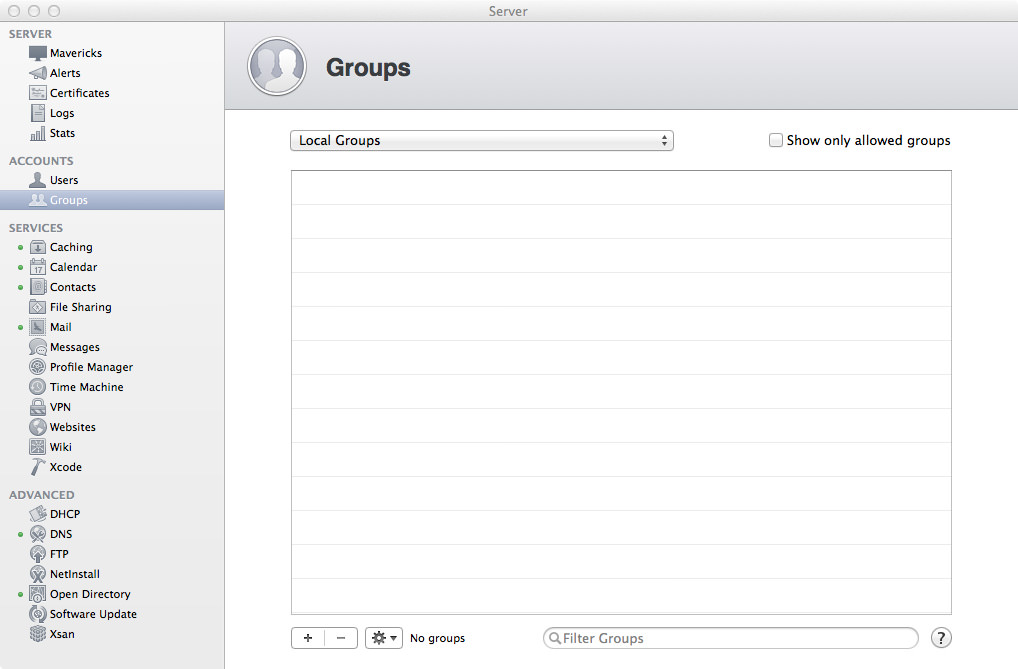
Okay, jump over to the Server app and load up the Groups section. If this is a base installation with Open Directory, you should only see one group in the Local Network Groups and it’s called Workgroup. By default, any user you add to the Open Directory domain will be added to this group. Given that I’m still rolling with characters from The Office, I’ll add some groups that relate to the users we added earlier. Click the plus in the bottom-left corner to add a new group.
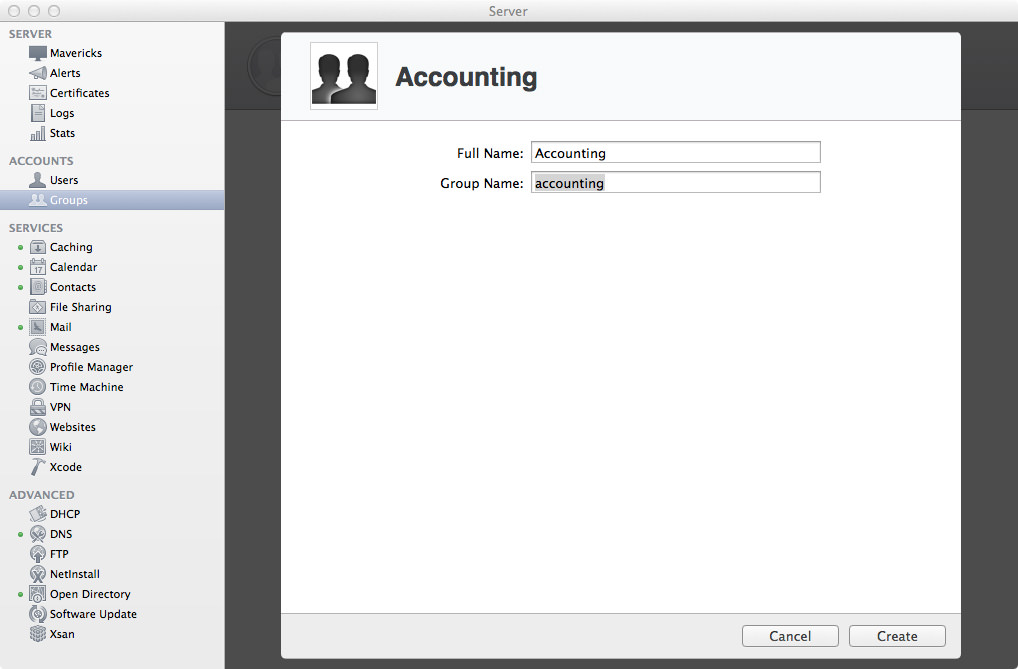
First off, I’m going to make a group called Accounting. For the Full Name, enter Accounting and the Group Name will be accounting. Once you’ve entered those details, go ahead and click the Create button to add the group. Initially when you add the group there’s hardly any configuration aside from the name. Believe me, there’s more configuration to be done once you’ve added the group!
You’ll now be taken back to the list of groups, but now the group you just added will be in that list. Hooray! But we can’t celebrate yet because our group has no one in it! Let’s change that. Double click on your group to modify the settings and add/remove users.
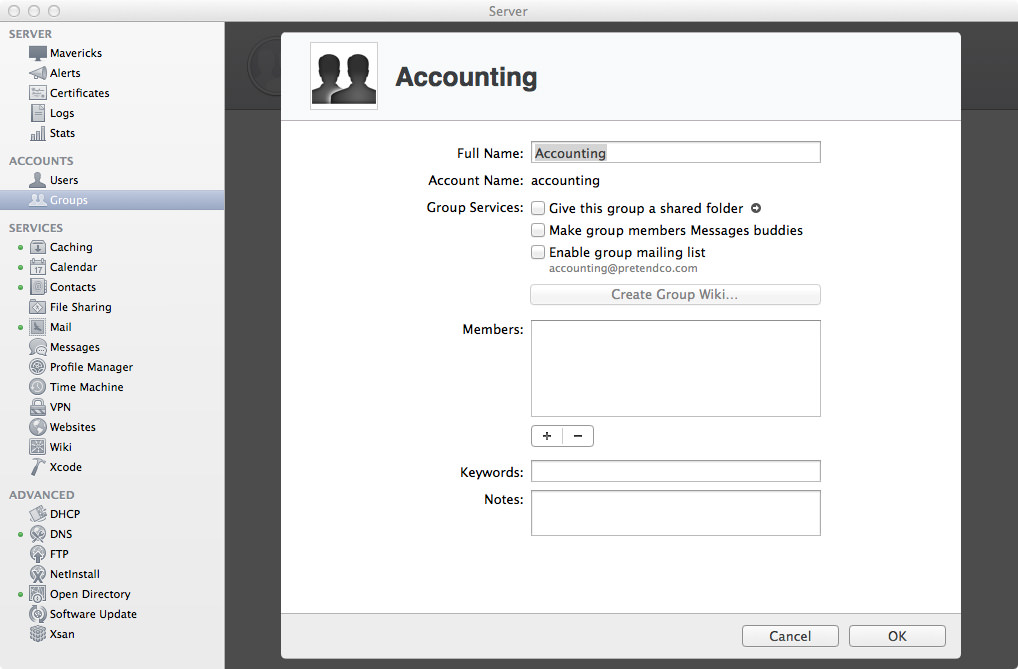
Alrighty then, we can now modify some settings. First thing you’ll notice is that you can rename the “nice” name of the group, but you can’t change the shortname. Basically, if you didn’t name your group correctly the first time and you want to change its name, just delete the damn thing and create a new one. This may be more tedious if you’ve been using the group for a while, so make sure you do it right the first time. Next thing is giving the group a special shared folder on the Server, which is located at /Groups/<groupshortname> on the server. Enable this if you want that folder to be enabled, otherwise if you have your own folder structure you’re following, you can just add this group to the folder’s ACL.
Next is making the group members all buddies in Messages (or jabber). Enable it if you want the members to automatically be friends if they have the Messages app set up. If you’re not using the inbuilt Messages server, this option won’t need to be enabled. For the curious, if you enter the following command into Terminal, you’ll be shown all the groups and their Messages autobuddy status.
sudo serveradmin settings accounts
For example, if I were to enable or disable autobuddy via Terminal for the group accounting, I would enter the commands below:
sudo serveradmin settings accounts:GroupServices:EnableAutoBuddy:accounting = no # Disble autobuddy
sudo serveradmin settings accounts:GroupServices:EnableAutoBuddy:accounting = yes # Enable autobuddy
The next easy option is setting up a mailing list which, when email is sent to that address, will be sent to all the members of the group. This email address is the group’s short name. For example, [email protected] or [email protected]. By default, only members of the group can send emails to that mailing list, otherwise, enable the “Allow mail from non-group members” to enable emails from anyone (yes, it’s literally everyone - not just people in the Open Directory domain).
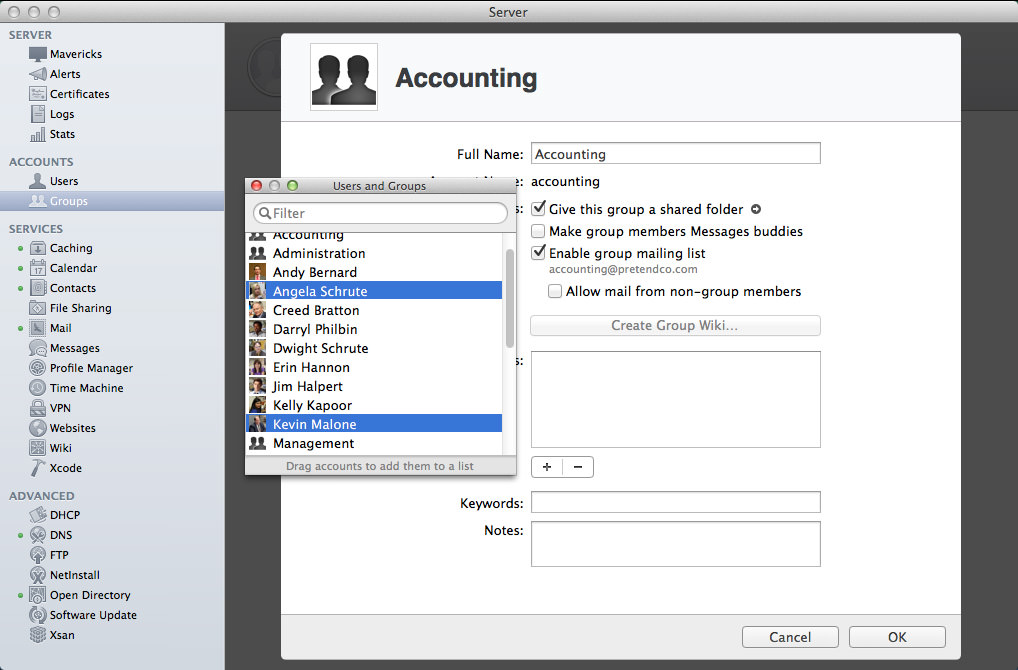
It’s now time to add members to the group! Not only can you add users to a group, but you can also add groups to other groups! There’s a very cool hierarchy that you can configure with users and groups, but don’t over-complicate it otherwise your ACL precedence and inheritance are going to be very, very confusing. When you click the plus you can either start typing in a user name or group name (and it will auto suggest then click on the user to add it), otherwise, start typing browse then select Browse to bring up a list of all applicable users and groups that can be added to the group.
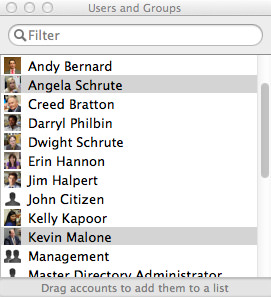
As per usual, you can add keywords and notes for the group. Once you’re done editing the group, click OK to save your changes.
As with every other OS X Server release there has been a program called Workgroup Manager (internally I’ve heard the nickname Workgroup Mangler) which shows you all the users, groups, machines and machine groups for Open Directory domains. First off, Workgroup Manager isn’t distributed with Server so we need to download it seperately off Apple’s website so click here to download. Once you’ve downloaded and installed Workgroup Manager, open it up and connect to your server! Go to Server then click Connect…
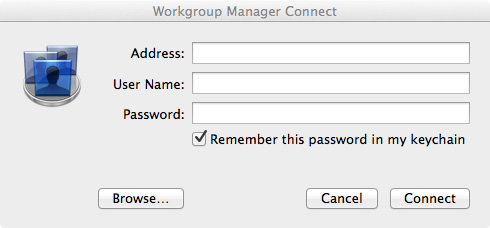
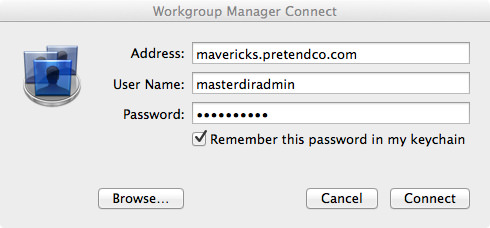
Enter details for your local server to connect. For example, the address will be the FQDN (remember what that stands for?) so my server will be mavericks.pretendco.com. If you want to make any edits you’ll need to be logged in as the Master Directory Administrator (or any other user you’ve given Server administration rights to). If you’re just connecting to browse the Open Directory domain, log in as any admin user (for example, my Server Administrator login for the Server machine gives me read-only access to the Open Directory domain). Next, enter the applicable password. Hit Connect to… you know… connect.
If all goes well and you’ve entered the correct details you should now be shown a list of all the users in your Open Directory domain! Hooray!
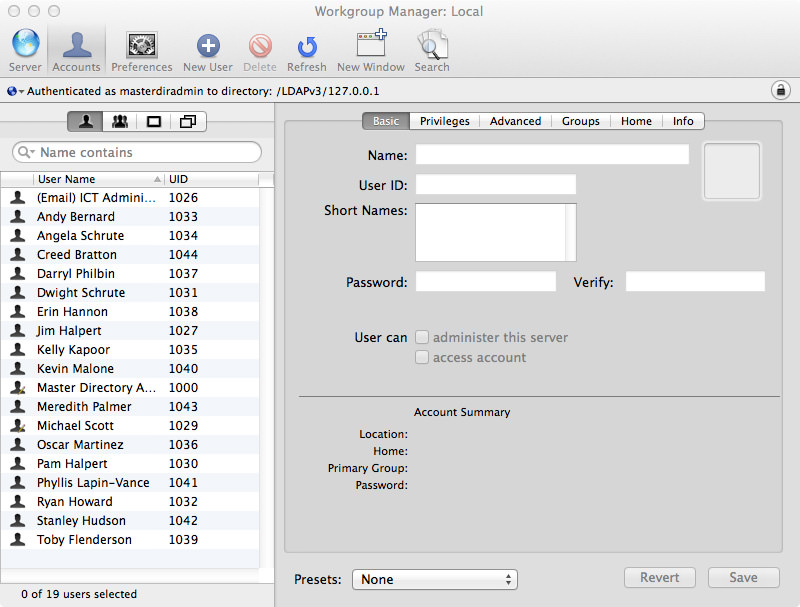
You’ll notice that in the list of users, any user that has a pencil in their icon means that they have administration rights for the Open Directory domain you’ve connected to. Anyway, just above the list of users are four icons, the second one from the left is Groups - click it.
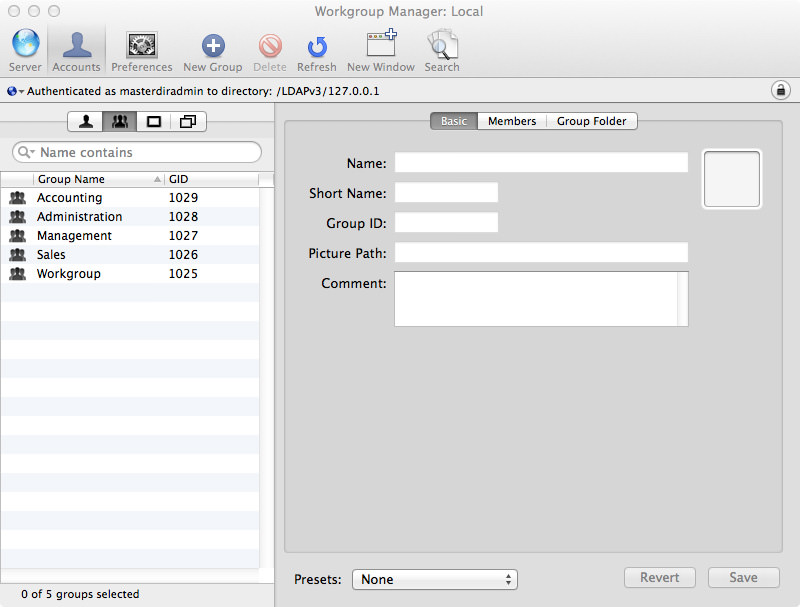
Excellent, we can now see all the groups in the Open Directory domain. Clicking on any group will show you the basic settings for the group, you can also change memberships for the group and even the Group Folder. Have a look around in Workgroup Manager, but make sure you know what changes you’re making, you could permanently damage a user or group by making the wrong change (word of advice, don’t change short names or IDs).
Accessible via Terminal is the very powerful command dseditgroup which as you might guess, allow you to edit directory service groups. The name of the command however is a bit of a misnomer given that you can do more than just edit the group. I personally think the command should be called dsgroup but that’s just me. Anyway, now onto the usefulness of this command. Given that we’ve been playing with the group accounting, let’s use this command to show us details about the group!
dseditgroup -o list accounting
Essentially what we’re doing here is using the -o flag (otherwise known as operation), we specify that we’re requesting a list of the accounting group. Here’s the output of dseditgroup for the group accounting on my system:
dsAttrTypeStandard:GroupMembership -
    aschrute
    kmalone
    omartinez
dsAttrTypeStandard:Member -
    aschrute
    kmalone
    omartinez
dsAttrTypeStandard:GeneratedUID -
    B6131BAA-B8CE-4828-8BE3-3BA03A8EAF43
dsAttrTypeStandard:OwnerGUID -
    DC18DEB1-35C6-44AA-80E2-E9EC8ABB52E3
dsAttrTypeStandard:AppleMetaRecordName -
    cn=accounting,cn=groups,dc=mavericks,dc=pretendco,dc=com
dsAttrTypeStandard:AppleMetaNodeLocation -
    /LDAPv3/127.0.0.1
dsAttrTypeStandard:RecordType -
    dsRecTypeStandard:Groups
dsAttrTypeStandard:GroupMembers -
    40013EA2-8EC9-46AE-9C50-440B26D67E53
    44781E25-B92D-48FF-AFB7-34254D3FBC34
    288217B9-EA79-40D7-ACAF-AA24D4F1FA62
dsAttrTypeStandard:PrimaryGroupID -
    1029
dsAttrTypeStandard:RealName -
    Accounting
dsAttrTypeStandard:RecordName -
    accounting
Another useful command if you just want to check to see if a particular user is a member of a particular group, you can enter the following:
dseditgroup -o checkmember -m <usershortname> <groupshortname>
For example, if I want to check to see if Oscar Martinez is a member of Accounting, I can enter this:
dseditgroup -o checkmember -m omartinez accounting
You should get the response below:
yes omartinez is a member of accounting
Or if if the user isn’t a member of the group, you’ll get the following response:
no jhalpert is NOT a member of accounting
Finally, another way of looking up groups via the command line is by using dscl, or the Directory Service command line utility. To get a list of all the groups in the local Open Directory domain, you would use the command below:
dscl /LDAPv3/127.0.0.1/ -list /Groups
This give you the shortname of each group:
accounting
admin
administration
com.apple.limited_admin
management
sales
staff
workgroup
If you prefer to get a little bit more information, you can also request a specific value like GeneratedUID, RealName, AppleMetaRecordName or Member. If I wanted to get a list of the shortnames of members for each group I could enter something like below:
dscl /LDAPv3/127.0.0.1 -list /Groups Member
Which will in turn show me all the groups and their members (as requested):
accounting      aschrute kmalone omartinez
admin           masterdiradmin mscott
administration  omartinez cbratton mpalmer kmalone dphilbin ehannon aschrute tflenderson kkapoor
management      mscott phalpert
sales           abernard jhalpert dschrute shudson phalpert rhoward plapinvance
staff           root
workgroup       jhalpert mscott phalpert dschrute rhoward abernard aschrute kkapoor omartinez dphilbin ehannon tflenderson kmalone plapinvance shudson mpalmer cbratton ictadmin
Just a quick heads up that Jedda and I’s check_osx_caching monitoring script for Nagios and OS X has been updated to support OS X Mavericks Server. Given that Caching Server 2 in 10.9 adds more verbosity to what content is taking up what space, I’ve added support for each content type and has been added to the performance data that is returned in the script.
As content usage is not tracked in Mountain Lion’s Caching Server I had to do a check of the operating system to see what version the script is being run on. To do this, I used the function sw_vers and added the flag productVersion to only have the product version returned. Now, on a first release of the OS you’ll get a clean float like 10.9 or 10.8 which makes it really easy to do a comparison using bc (a precision calculator language). Where it becomes a problem is when you get numbers like 10.8.5 which, because they have two periods, mean they don’t work with bc. I decided I could either write a function that does a full comparison of the version numbers, or just get the major and minor release and do a standard mathematical float comparison. Using grep I can pull the major and minor release information and assign it to a variable. See below for the code:
sw_vers -productVersion | grep -E -o "[0-9]+\.[0-9]"
Next, the comparison is performed to see whether the current OS is less than 10.9. If the current OS is less than 10.9, 1 is returned. If it’s the same (or greater), the result is 0. This code is below:
echo $osVersion '< 10.9' | bc -l
Note that the above example requires the variable $osVersion. If you were hard coding the values, you could do something like below:
echo '10.8 < 10.9' | bc -l
Now, if the value of the expression is 0, we will now grab all the Mavericks Caching Server usage data, and assign it to a variable called mavericksPerfData which is appended to the end of the final return printf.
I’ll be updating our RRDtool graph for the Caching Server 2 and will post the code soon! Stay tuned.
Over the past few weeks I’ve been writing tutorials for OS X Mavericks Server, and now that it has come out, I can finally post all my articles! See below for the list:
I hope you enjoy these articles. Please let me know if you have any queries or input by messaging me on Twitter at @yesdevnull.